It’s as easy as 1-2-3!
- Choose a questionnaire
- Create a project:
- Choose the participants – the evaluated manager and his/her manager, colleagues and subordinates;
- Set the timeline of the project – start date, reminders, end date;
- Modify the text of the invitations that participants will receive via email
And, after collecting enough feedbacks,
3. Generate a report with one-click
Each report has a specified price and in order to be generated it is necessary to have sufficient funds in your account in advance. The available amount is reduced by the value of the report when it is generated (for more information see Wallet Menu / Price List Menu).
All other actions on the platform are free.
Go to the Wallet Menu / Add funds to account Menu and write in the field the amount you want to top up. Confirm with the Request button.
You will receive an invoice on the email you registered with, after an administrator approves your request. Your account will be credited with the requested amount upon receipt of payment.
In the Wallet Menu / Transactions & Funds Menu you can see what amount is currently available, as well as all top-ups and deductions by date.
The prices for generating reports within a project are listed under Wallet Menu / Price List Menu. Each report is charged individually and the lower price for more reports is applicable to the generated reports above the respective indicated number.
The questionnaire is a list of work-related behaviors. Gathering information on the extent to which a set of behaviors is demonstrated (more often or less frequently) allows the measurement of various competencies, such as Strategic Thinking, Leadership, Teamwork and others.
You can use a questionnaire developed by us, supplement pre-developed questionnaire with your questions and competencies or create your own questionnaire. The questionnaire that you will use in a specific project must always be ready in advance.
See all questionnaires in the Questionnaires Menu.
The questionnaires are specially designed tools for assessment of 6 competencies (Prometriks 360 Basic) or 9 competencies (Prometriks 360 Advanced). They are science-based and proven in practice. Bulgarian and English are available, as the applicant chooses the language of completion, and you can generate a report in each of the two languages.
Using the Copy / Create similar Button to one of the Prometriks’ questionnaires that you can use as a basis. In this way you create your own version of the questionnaire. In it, you can edit or remove existing questions with the option Edit against the title of the questionnaire.
However, if you need to add questions and / or competencies – use the + New Questionnaire button and follow the procedure described in How do I create a new questionnaire?
Editing the name of an existing competence or creating a new competence is possible only by creating a new questionnaire. To do this, see How do I create a new questionnaire?
From the Questionnaires Menu you have access to both the questionnaires developed by us (marked with *Prometriks) and the versions you have created (*My questionnaires). Using the Copy / Create Similar button you can use one of the Prometriks’ questionnaires as a basis, but edit or remove questions.
However, if you need to add questions and / or competencies – use the + New Questionnaire button and follow the procedure in 6 easy steps:
- Languages - IMPORTANT: You need to enter all the elements (title, competencies, questions) in Bulgarian and in English, if you want the assessment or the report with the results to be possible in both languages.
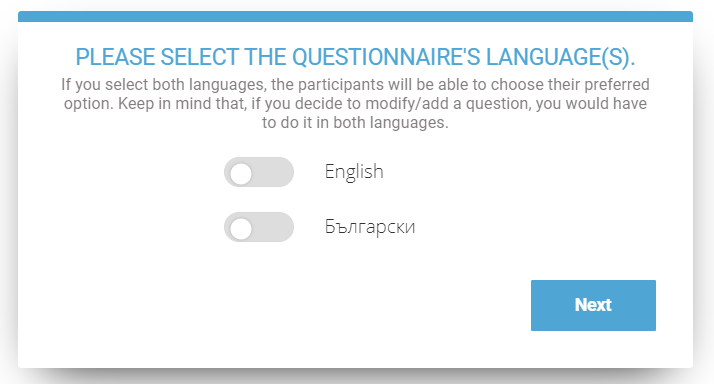
- Title
- Competencies – Select at least 3 competencies that you would like to assess with the questionnaire. If necessary, add a new one with + Competence
- Selection of closed questions – Select and / or edit at least 10 questions that best fit your goals. If necessary, add a new one with + Question.
- Open-ended questions – Here you can add an open-ended question to each of the competencies. It will be displayed last in the competency. If you want to ask a general open-ended question, select ‘No competence’ and it will be asked at the end of the questionnaire.
IMPORTANT: The answers provided by the participants to these questions will appear directly in the generated reports without any filter or modification. - Overview – here you see a summary of what has been done – number and list of questions to which competencies they refer and how long it will take to complete the questionnaire. Click the Finish button to create your questionnaire if you are satisfied with the result or go back to correct.
This is the process of simultaneously evaluating one or more participants with the same 360-degree feedback questionnaire.
Creating a project goes through 5 steps:
Step 1: From Menu / Project select button + New project. Name the project and select a questionnaire
IMPORTANT: The questionnaire must be ready before creating a project (see What questionnaires do I have access to?)
Step 2: Appearance and language of the questionnaire used
Step 3. Import participants (see How do I assign participants?)
Step 4. Dates and reminders (see How do I set a start and end date?)
Step 5. Invitations (see What do participants receive?)
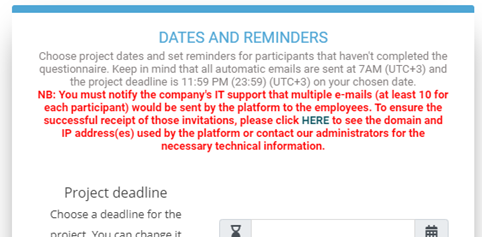
IMPORTANT: To avoid possible restrictions due to the simultaneous receipt of a large number of emails – 1 invitation for each evaluation, which must give each participant, please notify your IT department. You will receive the necessary technical information with one click in step 4 when creating the project, even before you set its start:
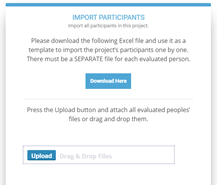
- Download a template file
- Fill in a separate file for each evaluated person with participants who will evaluate him/her
- Attach 1 or more prepared files
IMPORTANT: Step 3 in creating a new project is the import of participants. Download the excel file suggested by the platform. Use it as a template and prepare a separate file for each evaluated person.
In each file, first fill in the data of the assessed person, as shown in the example line.
Then fill in the data for all participants who will evaluate him/her.
Mandatory fields are: email and what is the participant (manager, colleague or subordinate) to the evaluated person.
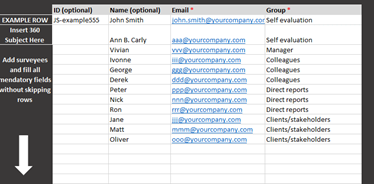
IMPORTANT: Each file must contain: only 1 assessed person (self-assessment), at least 1 manager, at least 3 colleagues and 3 subordinates.
- Click on the name of the respective project and select Import participants +
- Download a template file or copy an already used one (see How do I assign participaHow do I set a start and end date?nts?)
- Fill in the required data in the file
- Attach 1 or more prepared files (a separate file is required for each rated person)
- Confirm with Save changes
- Click on the name of project and select from the drop-down menu for which evaluated person you want to add an evaluator
- A list of information for all participants in this evaluation is displayed. Select Add +
- Fill in the data for the new participant
- Save with

In Step 4 of Creating a project you need to specify the deadline for participation in the project, the start date – then invitations will be sent with links to all participants and at least one reminder date – it will be sent automatically only to those who have not yet given their assessment.
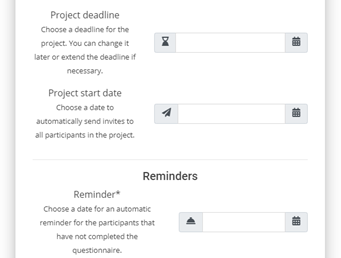
Dates can be changed (with some restrictions) if necessary.
At least one reminder is provided for each project. It is set in step 4 of Creating a project and is automatically sent only to those who have not yet given their assessment at the moment.
In the same step or from the Projects Menu / Name of the respective project, a second and third reminder can be set at will or the date of an already planned reminder can be changed.
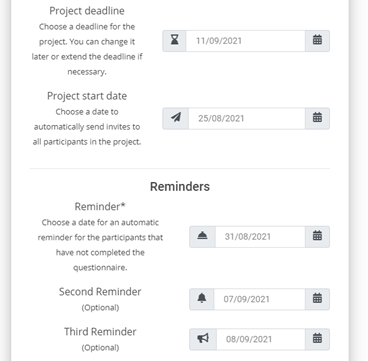
The set deadline can be changed, even if it has expired. This is done by selecting  from the Projects Menu / Name of the respective project next to the field with the date of completion. Set the new end date (you can also use the built-in calendar) and save the change with .
Each participant in the 360-degree feedback, whether an evaluated person, manager, colleague, subordinate or client, receives an email invitation with an individual link to access the relevant questionnaire.
Those participants who have not given their assessment by the set reminder dates will again receive the same email with the same link specifying that it is a reminder.
After the project deadline, the link will no longer be active.
You can change the text of the invitation in the Projects Menu, after selecting the respective project and clicking the Save button.
The assessment can be done at any time and from any device with Internet access.
The link is individual and leads to the questionnaire where the participant chooses the language of completion (if the questionnaire is bilingual) and gets acquainted with a short instruction for the participation:
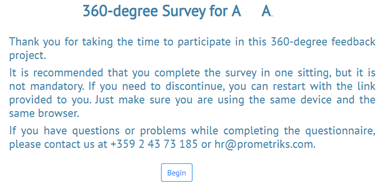
After the project deadline, the link will no longer be active.
A report is a document with the processed results for one evaluated person. They are presented with graphics and interpretive text. The data is processed automatically by the platform. You decide when and if the data should be processed (report generated).
Each report consists of:
- An overview of the results, which shows a comparison of the feedbacks given by the different groups of participants for each of the assessed competencies.
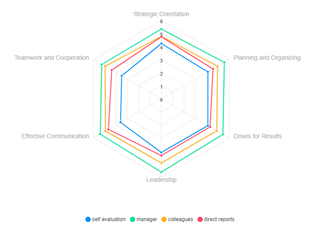
- Competency results (total) and comparison of these results between different assessment groups
- Results for each assessed behavior (question) by groups
- Comments from participants given in the open answer questions (if any)
- Outlined strengths (highest rated behaviors) and areas for development (lowest rated behaviors)
A report can be generated at any time after receiving at least a minimum number of feedbacks – these are self-assessment, evaluation by at least 1 manager and at least 3 feedbacks by other groups of assessors – colleagues, subordinates and clients.
However, it is advisable to collect the maximum number of evaluations before a report is generated in order to make it as informative as possible. To do this, use reminders (see What is a reminder? When is it sent? How do I set it?) Or extend the project (How do I extend the project if necessary?)
IMPORTANT: Keep in mind that each report generation is paid, i.e. if for some reason you have to re-generate a report for the same person, you will be charged again.
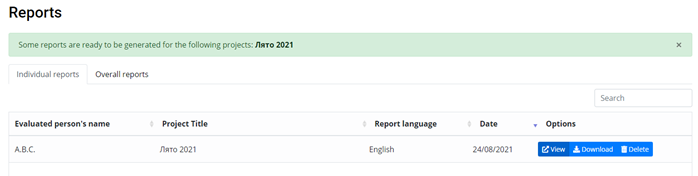
It is permissible to have only 1 report per 1 evaluated person at a time. To re-generate a report for the same person, you must first delete the already generated report using the Delete button in the Reports menu against the respective name.
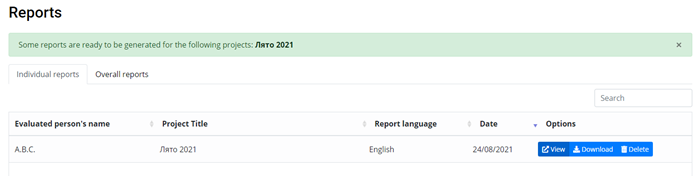
All previously generated reports are available in the Reports Menu and you have unlimited access to them. If you want to download and save a report to another location of your choice, use the Download button.
From the reports you will receive detailed and comprehensive information about the behaviors and competencies, demonstrated in work environment by the evaluated person. Depending on the objectives and scope of your project, you can only provide the report to the evaluated person, but it is useful to discuss the results in a scheduled individual feedback session, where development areas are agreed on and a plan with concrete steps is drawn up. The session can be conducted by the direct supervisor of the evaluated person, by a Human Resources specialist in your company or entirely with the help of 360 Assessia consultant (Contact: +359 877 839 949 / info@360assessia.com).
We also conduct trainings for giving feedback.
All reports can be found in the Reports Menu. Information is provided on which project they were generated and when. They are available for viewing with the View button or for downloading and storing at a place of your choice with the Download button